Managing your subscription
How to upgrade, downgrade, view usage, manage payment methods, view invoices, and access the billing portal.
Billing dashboard
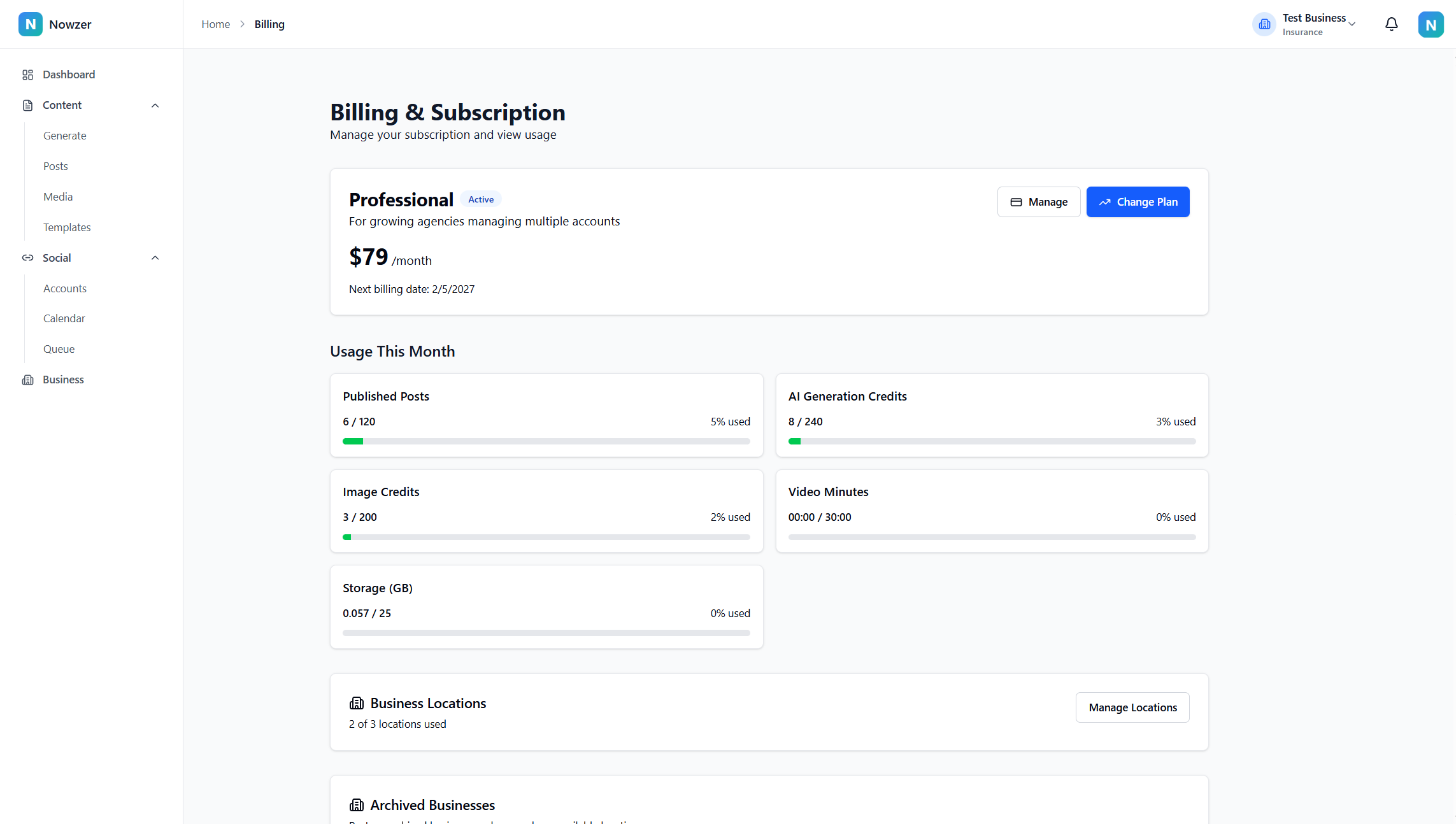
Navigate to the Billing page from the profile dropdown in the top bar, or from Business Settings. The billing dashboard shows your current plan, status, usage for the current month, business locations, and invoice history.
Understanding your usage
The Usage This Month section shows progress bars for each metered resource: published posts, AI post generation credits, AI image generation credits, video minutes, and storage. Each bar shows your current usage, the percentage used, and a status indicator:
- Unlimited - the resource has no limit on your plan.
- Normal - usage is within your plan's allocation.
- In Grace Buffer - you have exceeded your limit but are within a small grace buffer. This is a soft warning to reduce usage.
- Limit Reached - you have fully used your allocation. Additional usage is restricted until the next billing cycle or a plan upgrade.
Upgrading your plan
Click Change Plan on the billing dashboard, or navigate to the Upgrade page. Select the plan you want, choose monthly or annual billing, and confirm. If you already have an active subscription, the change is applied to that subscription. If you are starting a new paid plan, you will be taken to secure checkout. Upgrades take effect immediately - your new limits are available right away.
Downgrading your plan
Downgrading works the same way as upgrading. Select a lower plan and confirm. If your current usage exceeds the new plan's limits (for example, you have 5 business locations but the new plan allows 3), you will be prompted to resolve the over-limit before the downgrade takes effect.
Managing payment methods and invoices
Click Manage on the billing dashboard to open the Stripe billing portal. From there you can update your payment method, view and download past invoices, update billing information, and cancel your subscription. Invoice history is also shown on the billing dashboard - click View to see an invoice or PDF to download it.
Private trial invites
Nowzer can issue private trial invites for controlled tester onboarding. These invites are email-bound and are not public coupon codes. When a private trial invite is used, the recipient must sign in with the invited email address before starting checkout.
Trial invites do not require a payment method to start. They also do not auto-renew at the end of the trial. If the tester wants to continue after the trial ends, they must explicitly choose a paid plan.
Business locations
Your plan includes a maximum number of business locations (separate businesses you manage). The billing dashboard shows how many you are using. If you are over your plan limit, a warning appears with a link to manage your businesses. You can archive unused businesses from Business Settings to free up location slots.
Related articles
Plans and pricing
An overview of Nowzer's subscription plans - Starter, Professional, and Agency - including what is included in each plan, usage limits, and the annual discount.
Cancellation and access
What happens when you cancel your subscription, how the paid period works, what read-only mode means, and how to reactivate.