Calendar views
How to use the content calendar to visualize your publishing schedule across month, week, day, and agenda views, and how to reschedule by dragging posts.
Accessing the calendar
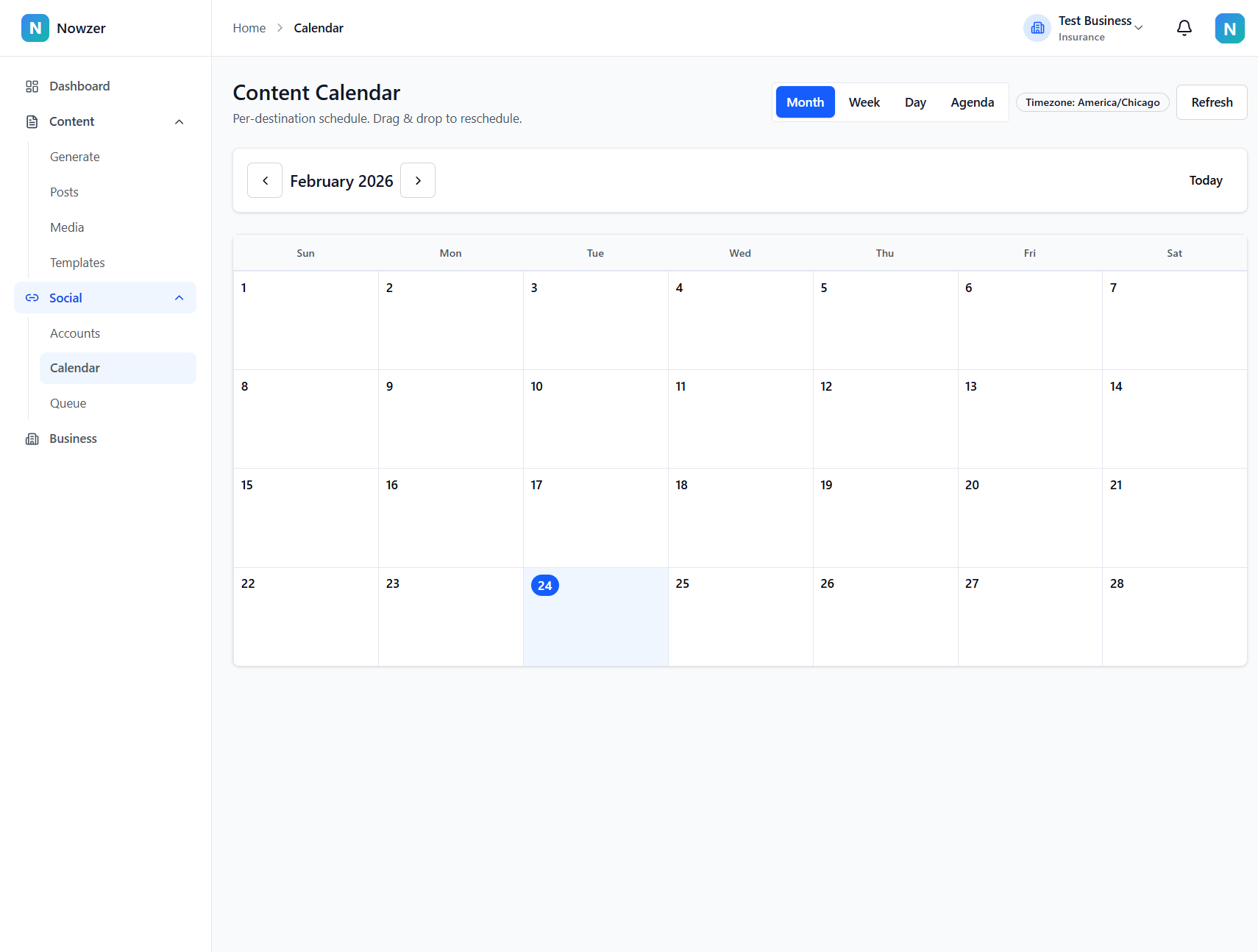
Navigate to Social → Calendar in the sidebar. The calendar shows all your scheduled and published posts across every connected destination. A timezone badge in the header indicates which timezone is being used for display.
Calendar views
Switch between four views using the buttons in the header:
| View | Shows | Best for |
|---|---|---|
| Month | All days in the current month with post counts per day | Getting an overview of your publishing cadence across the month |
| Week | Seven days with 30-minute time slots | Seeing exactly when posts are going out during a typical week |
| Day | A single day with 30-minute time slots | Detailed view of a busy publishing day |
| Agenda | A chronological list of upcoming posts grouped by day | Quickly scanning upcoming posts without the visual calendar grid |
Navigating dates
Use the left and right arrows to move backward and forward (by month, week, or day depending on the view). Click the Today button to jump back to the current date.
Viewing post details
Click any post on the calendar to open a details dialog. The dialog shows the post caption, destination, scheduling method (queue, fixed time, or publish now), status, and scheduled or published time. From this dialog you can reschedule the post, cancel it, skip the slot, publish it immediately, or retry a failed publish.
Rescheduling by dragging
In the Month, Week, and Day views, you can drag a post to a different time or day to reschedule it. In Month view, dragging to a different day keeps the original time. In Week and Day views, dragging to a different time slot changes both the date and time. This is a quick way to adjust your schedule without opening dialogs.
Overflow indicators
On busy days in Month view, if more than four posts are scheduled, the calendar shows a "+N" indicator. Click it to see all posts for that day in a detail view.
Related articles
Queue management
How to use the posting queue to maintain a consistent publishing cadence - reordering posts, shuffling, skipping slots, publishing immediately, and configuring your posting schedule.
Scheduling a post
How to schedule a post for publishing - choosing between immediate publish, queue-based scheduling, and fixed-time scheduling, with per-destination control.