Queue management
How to use the posting queue to maintain a consistent publishing cadence - reordering posts, shuffling, skipping slots, publishing immediately, and configuring your posting schedule.
Understanding the queue
The Queue is your automated publishing pipeline. Instead of picking exact times for every post, you define a posting schedule (days and times) and the queue publishes your posts in order at those times. Think of it as a playlist for your social content.
Navigate to Social → Queue in the sidebar to open the queue page.
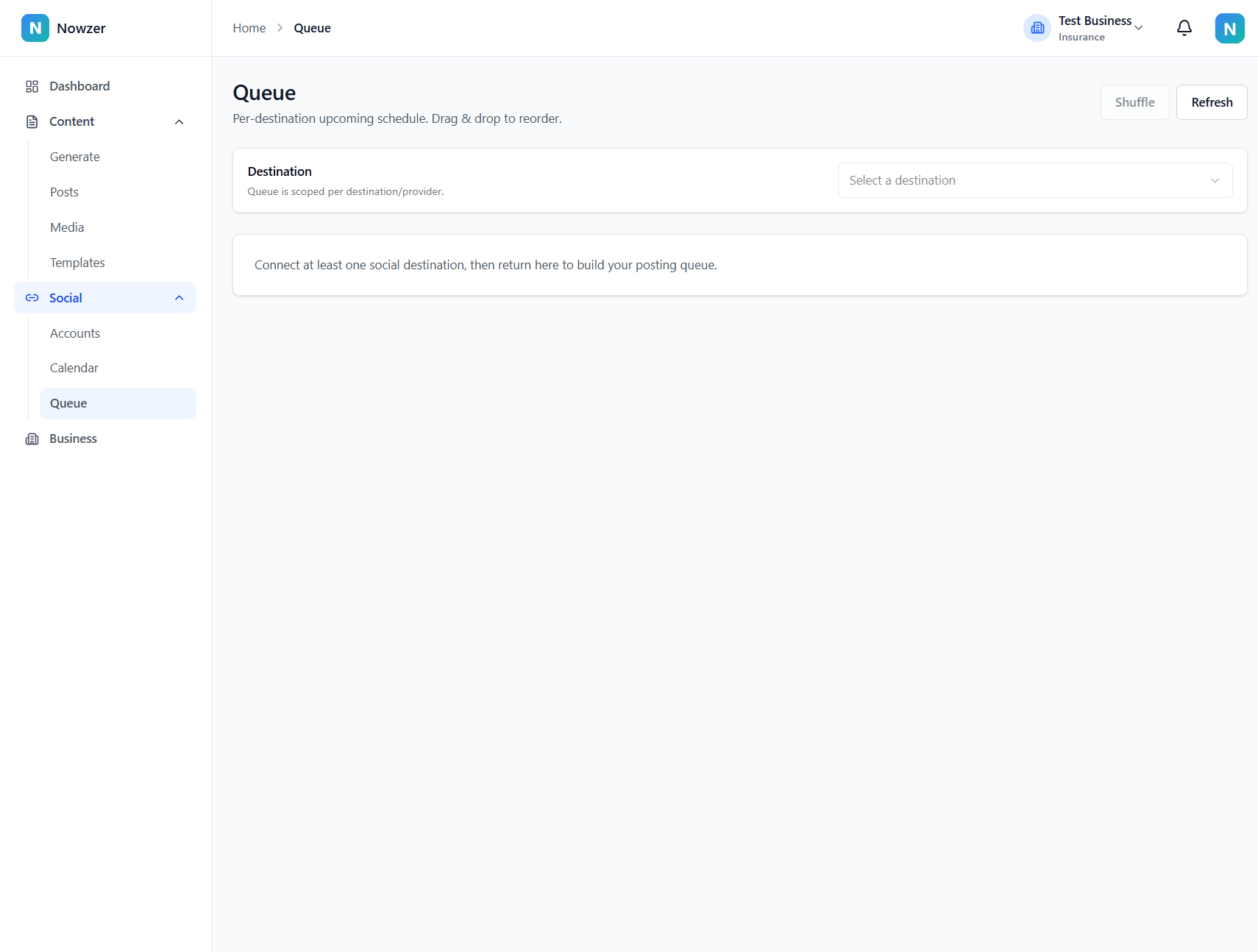
Selecting a destination
The queue is scoped per destination. Use the dropdown at the top to select which social channel you want to manage (for example, "LinkedIn: My Company Page" or "Facebook: Agency Page"). Each destination has its own independent queue and schedule.
Configuring your posting schedule
The Posting Schedule section at the top of the queue page controls when posts are published. You can add time slots for each day of the week:
Select a day
Choose a day of the week from the dropdown.
Set a time
Enter the time you want a post published on that day.
Click Add Slot
The slot is added to the schedule. You can add multiple slots per day.
Enable or disable slots
Each slot has a checkbox. Uncheck to temporarily disable a slot without removing it.
Save the schedule
Click Save Schedule to apply your changes.
Schedule scope
You can control which destinations a schedule applies to using the scope selector: this destination only, all destinations for this platform, or all destinations (business-wide default). A narrower scope overrides a broader one.
Managing queue order
Posts in the queue are published in order from top to bottom. You can change the order by:
- Drag and drop - click and drag any post in the queue to move it to a different position.
- Shuffle - click the Shuffle button to randomly reorder all posts in the queue. Useful when you want variety in your posting sequence.
The queue displays and allows reordering of the first 200 posts. If you have more than 200 queued posts, a notice indicates that reordering applies to the visible items.
Queue actions
Click any post in the queue to open a details dialog with these actions:
| Action | What it does |
|---|---|
| Publish Now | Immediately publishes this post, skipping the queue schedule |
| Skip Slot | Moves this post to the next available slot, effectively skipping one turn |
| Cancel Post | Removes this post from the queue for this destination |
| Retry | Available when a post has failed - attempts to publish again |
| Save Time | Reschedule to a specific date and time you choose |
Related articles
Scheduling a post
How to schedule a post for publishing - choosing between immediate publish, queue-based scheduling, and fixed-time scheduling, with per-destination control.
Default posting schedule
How to set up default posting times for your business so the queue knows when to publish, and how per-destination overrides work.
Calendar views
How to use the content calendar to visualize your publishing schedule across month, week, day, and agenda views, and how to reschedule by dragging posts.