Business profile settings
A comprehensive guide to every tab in Business Settings - profile details, brand voice, AI memories, brand colors, content topics, compliance, notifications, posting schedule, connected platforms, and team.
Accessing business settings
Click Business in the sidebar to open Business Settings. The page is organized into tabs across the top. Each tab controls a different aspect of your business configuration.
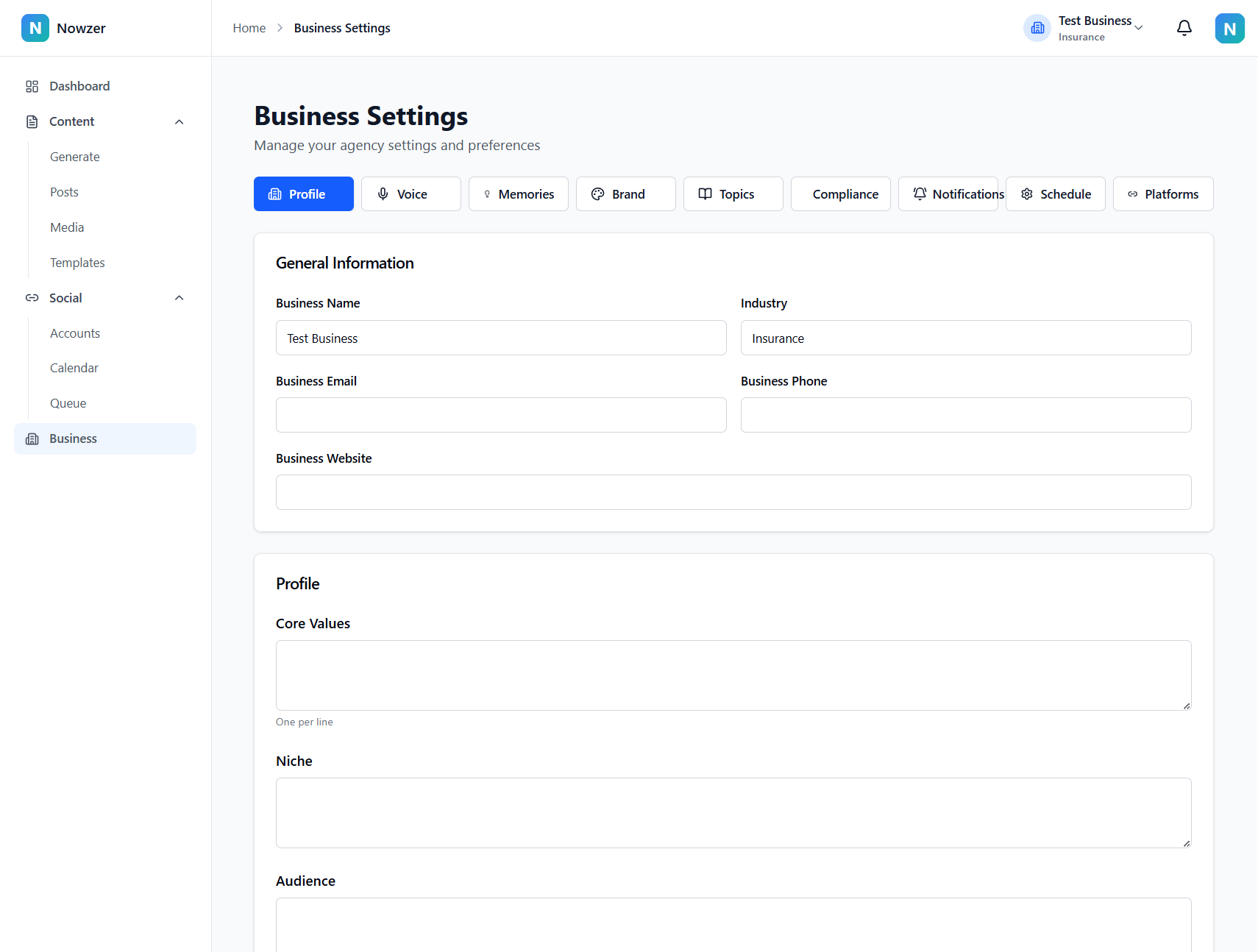
Profile tab
The Profile tab contains your core business information: business name, industry, website URL, logo, headshot, and contact details. This is the identity that appears on your published posts and in your brand. Changes here take effect immediately after saving.
At the bottom of the Profile tab you will find options to archive or delete your business. Archiving removes the business from active use but preserves the data - you can restore it later from the Billing page. Deleting is permanent.
If you delete a business, all associated content, media, schedules, and settings are removed and cannot be recovered. Archive instead if you might need the data later.
Voice tab
The Voice tab defines how your AI-generated content sounds. It includes your brand voice description (tone, formality, style), your target audience, and the pain points your audience faces. Write naturally - describe how you would talk to your ideal client. The AI uses this context to match your communication style when generating posts.
Memories tab
AI Memories are notes that the content generation system remembers across sessions. Use this to record specific preferences, facts about your business, or instructions that should always be considered. For example: "Always mention we are family-owned since 1995" or "Never use the word cheap - use affordable instead."
Brand tab
The Brand tab manages your visual identity. Upload your business logo and a headshot (used as the author image on social post previews). Set your primary and secondary brand colors - these are used when generating social media graphics and visual designs. You can also configure font preferences if available.
Topics tab
Content Topics are the subjects you want your social media posts to cover. When you generate content with AI, you can select from these topics or enter a custom one. Add topics that represent your core services, industry knowledge areas, and subjects your audience cares about.
Compliance tab
See Compliance Industry Settings for a detailed explanation of this tab.
Compliance industry settings
Configure compliance review rules for your industry - US Insurance, US General, or no compliance screening.
Notifications tab
Control which email notifications your business sends. You can toggle each category on or off: publishing failures, account connection issues, compliance blocks, and weekly schedule reminders. See Managing Notifications for details.
Schedule tab
Set your default posting schedule - the days and times that the queue will use when scheduling posts. This is a business-wide default. You can override the schedule per destination from the Queue page. See Default Posting Schedule for details.
Platforms tab
A summary of your connected social accounts. Shows which platforms are connected and how many destinations are active. Includes a link to manage your social accounts, and quick links to the Queue, Calendar, and Schedule settings.
Related articles
Compliance industry settings
How to configure compliance review for your industry, including US Insurance state-level and product-line rules, US General advertising disclosures, and custom disclaimers.
Default posting schedule
How to set up default posting times for your business so the queue knows when to publish, and how per-destination overrides work.
Managing notifications
How in-app and email notifications work, where to find them, how to manage read state, and how to configure email notification preferences for your business.