AI content generation
How to use Nowzer's AI to generate social media posts from a topic, including content formulas, templates, platform targeting, style preferences, and what to do with the results.
Getting to the generation page
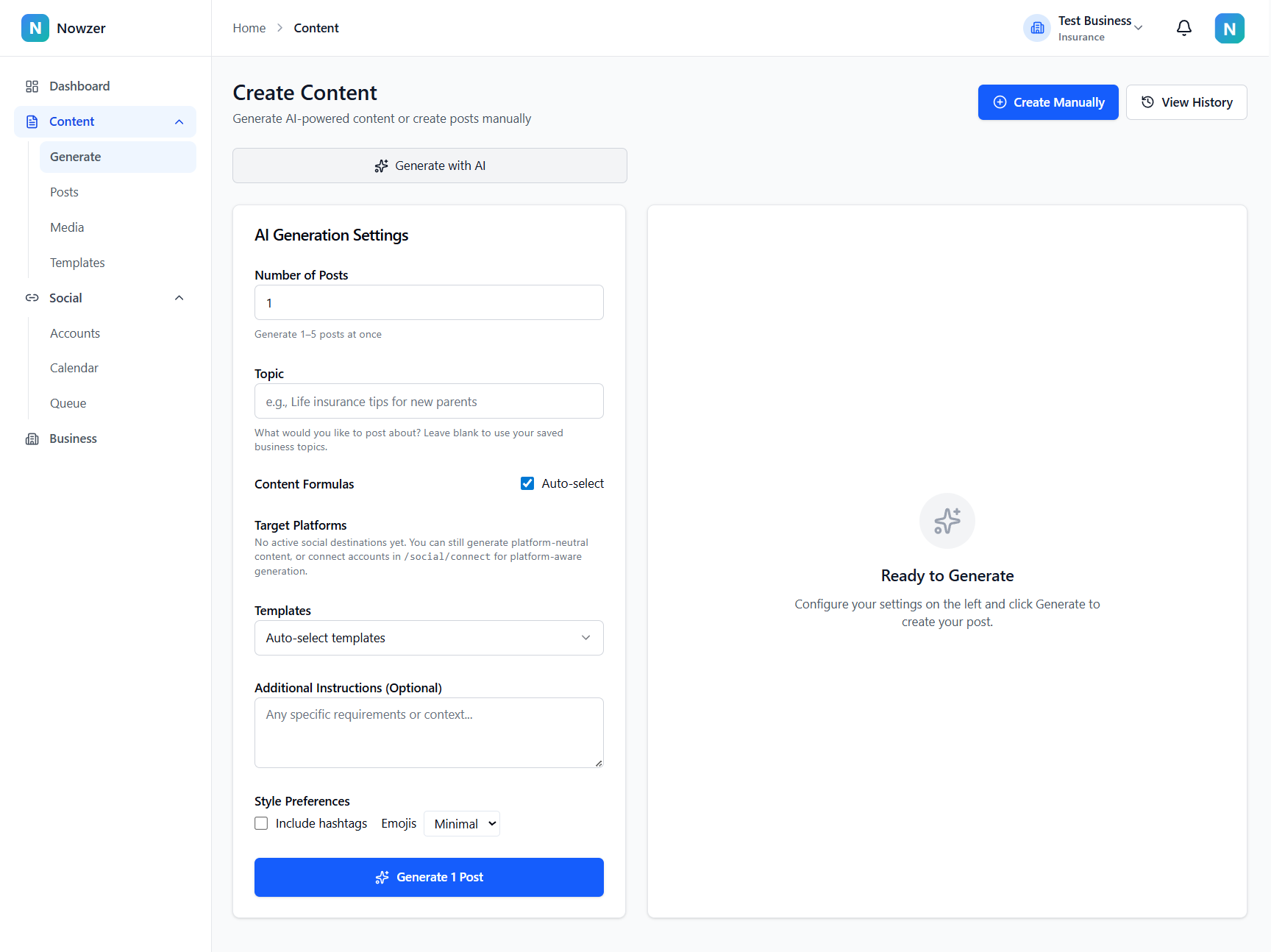
Navigate to Content → Create Content in the sidebar, or click Generate Content from the dashboard quick actions. The page is split into two columns: the generation form on the left and the results area on the right.
Filling out the generation form
Number of posts
Choose how many posts to generate in a single run, from 1 to 5. Each post will be a unique variation on your topic. Generating more posts gives you options to choose from, but uses more of your AI generation credits.
Topic
Enter the subject you want to post about. Be as specific or general as you like. Examples: "Life insurance tips for new parents," "Spring home maintenance checklist," or "Why bundling auto and home saves money." The AI combines your topic with your business profile, voice, and audience to create relevant content.
Content formulas
Content formulas are proven writing structures that shape how your post is organized. By default, Auto-select is enabled and the AI picks the best formulas for your topic. You can switch to manual selection and browse the formula library to choose specific structures.
Formulas are organized into categories: Persuasion, Education, Engagement, Story, and Social Proof. Each formula has a name and description explaining the structure. You can search and filter formulas in the formula browser dialog.
Target platforms
Select which social platforms this content is for: LinkedIn, Facebook, Instagram, X (Twitter), and Google Business Profile. Only platforms with active connected destinations are shown. The AI tailors the caption length, tone, and format for the selected platforms. If no platforms are selected, content is generated as platform-neutral.
Templates
Templates control the visual design that accompanies your post. You have three options:
- Auto-select templates - the system picks a template design from your default template sets.
- Select templates manually - browse your template library and pick specific designs.
- No templates (text only) - generate caption text without any visual design.
Additional instructions
An optional free-text field where you can add specific instructions for the AI. Examples: "Include a call to action to schedule a free consultation," "Keep the tone casual and friendly," or "Mention our 24/7 claims support."
Style preferences
Two style options let you control the finishing touches:
- Include hashtags - adds relevant hashtags to your posts.
- Emoji usage - choose between Yes (emojis used freely), Minimal (occasional use), or No (no emojis).
Generating and reviewing results
Click Generate to start. You will see a loading indicator while the AI creates your posts. Results appear one by one as they are ready. Each result shows the generated caption, platform badges, a preview of the template design (if selected), and action buttons.
Working with results
Each generated post gives you several options:
| Action | What it does |
|---|---|
| Copy | Copies the caption text to your clipboard |
| Regenerate | Generates a new variation of this post using the same settings |
| Add Images | Opens the image dialog where you can upload photos, search stock images, search GIFs, or generate images with AI |
| Accept as Draft | Saves the post to your content library as a draft |
| Open in Editor | Saves the post and opens it in the full post editor for further editing, media management, and scheduling |
AI-generated content is a starting point. Review every post, adjust the wording to match your voice, verify any facts or claims, and add your personal touch before scheduling.
Related articles
Writing posts manually
How to create a post from scratch without AI generation, including writing your caption, adding media, and selecting platforms.
The post editor
A complete guide to the post editor interface - caption editing, media management, platform selection, compliance checking, previews, and saving or scheduling your post.
Using templates
How to browse, select, and customize design templates for your social media graphics, including setting default templates for AI-generated content.