Content library
How to use the content library to manage all your posts, filter by status, preview content, and perform bulk actions across drafts, scheduled, and published posts.
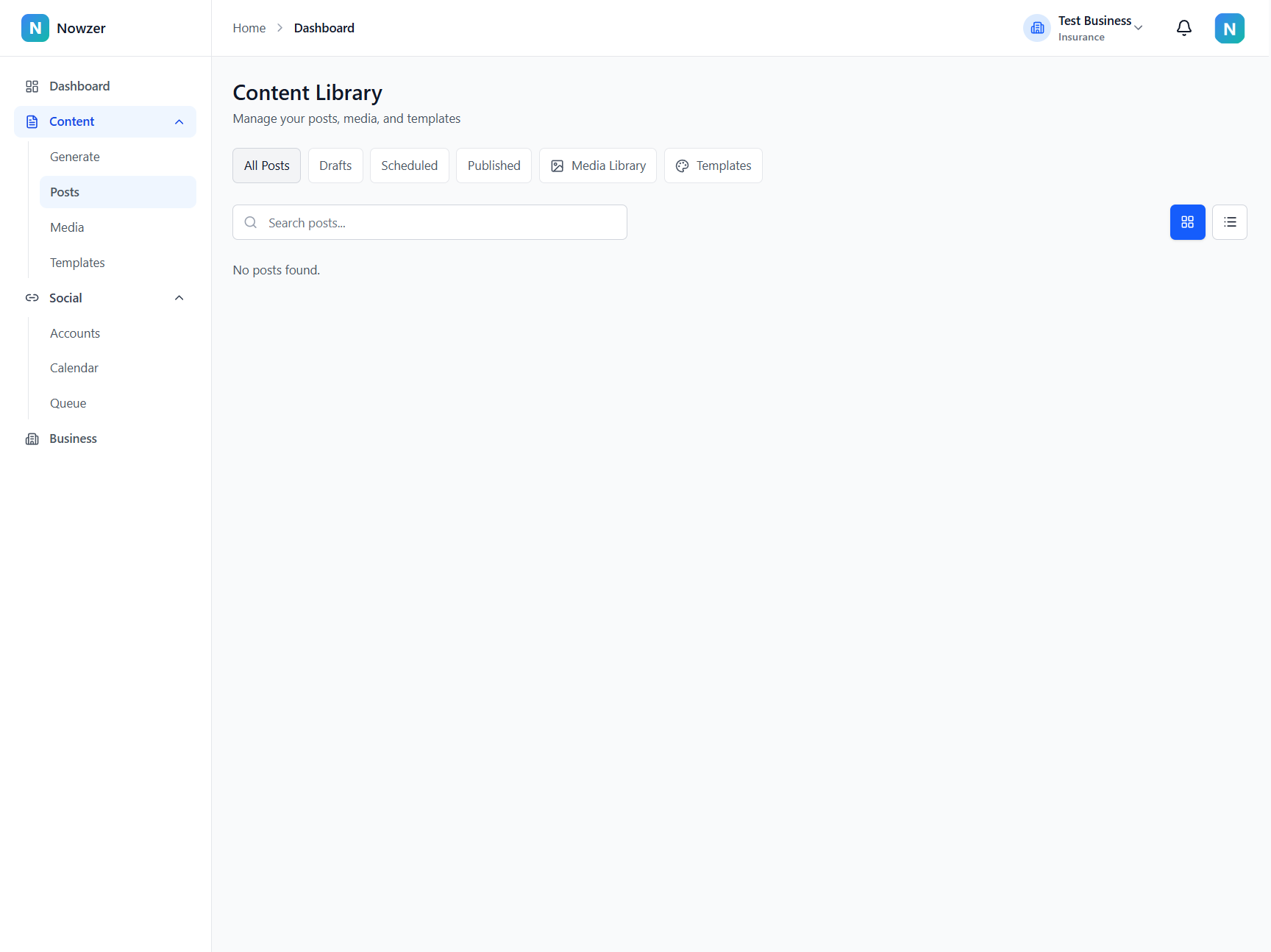
Accessing the content library
Navigate to Content → Posts in the sidebar to open the Content Library. You can also reach it from the dashboard by clicking View All Posts on the Recent Posts card.
Tabs and filtering
The library is organized into tabs that filter your content by status:
| Tab | What it shows |
|---|---|
| All Posts | Every post regardless of status |
| Drafts | Posts that have been saved but not yet scheduled |
| Scheduled | Posts waiting to be published at a future time |
| Published | Posts that have been successfully published |
| Media Library | All uploaded and imported images and videos (see Media Library article) |
| Templates | Design templates available for your visual content (see Using Templates article) |
Each tab has a search bar to filter posts by caption text. You can switch between grid view and list view using the toggle in the top right.
Post cards
Each post appears as a card showing the cover image (if any), a compliance badge, a status badge (Draft, Scheduled, Published), the caption text preview, the scheduled time (for scheduled posts), and platform badges showing which destinations it will be published to.
Actions on posts
Hover over or click a post card to see available actions:
| Action | Available for | What it does |
|---|---|---|
| View | All posts | Opens a preview dialog showing the full post with all media |
| View on Platform | Published posts | Opens the published post on the social platform in a new tab |
| Schedule / Publish | Drafts | Opens the scheduling dialog to publish now, queue, or schedule |
| Manage Schedule | Scheduled posts | Opens a dialog showing all scheduled destinations with options to reschedule or cancel |
| Edit | Drafts, Scheduled | Opens the post in the full editor |
| Duplicate | All posts | Creates a copy of the post as a new draft |
| Delete | Drafts, Scheduled | Permanently removes the post |
Compliance badges on post cards
If compliance review is enabled, each post card shows a compliance badge. You can click the badge to view the detailed compliance report, or to run a new compliance audit if one has not been performed yet. Badge colors indicate severity: green for passing, yellow for advisory or warning, and red for high risk or blocking issues.
Generation history
To see your past AI content generation runs, go to Content → Create Content and click View History. This page shows each generation job with the topic, targeted platforms, and status (succeeded, failed, or in progress).
Related articles
The post editor
A complete guide to the post editor interface - caption editing, media management, platform selection, compliance checking, previews, and saving or scheduling your post.
Media library
How to manage your images and videos - uploading, browsing stock photos, searching GIFs, generating images with AI, editing images, and organizing your media library.
Scheduling a post
How to schedule a post for publishing - choosing between immediate publish, queue-based scheduling, and fixed-time scheduling, with per-destination control.